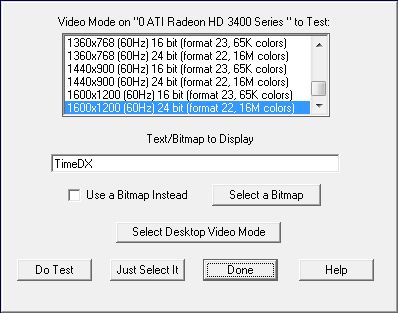
This dialog allows you to select a video mode and see if basic features needed by DMDX are supported by the video card. In addition you can see how a given bitmap will look. The video mode selected here will also be used for all other tests that TimeDX performs that require a video mode. To actually test the selected mode, click OK and TimeDX will then switch to that mode and test it, clicking "Just Select It" will just select it for other TimeDX tests.
When the "Select Desktop
Video Mode" is
clicked it selects whatever video mode corresponds to what the windows
desktop is currently set at. In addition TimeDX 5 will pick the
desktop video mode as the default video mode instead of the archaic 640x480
8bit video mode TimeDX used to start with. There are a couple of reasons
for this. First is that later video drivers appear to be really bad at
handling 8 bit video modes (have been so for a number of years, it's 2007 as
this note is written) so they are highly discouraged and having TimeDX
automatically pick one of them is stupid. And while the desktop video
mode may be a stretch for some machines to have multiple back buffers of the
predominance of TFT displays these days means that a lot of the time the only
video mode worth using is the desktop one (or one that's the same except for
color depth) that is hopefully set to the native resolution of a TFT display if
one is used. The reason for all the concern with TFT displays (or LCD
flat panels) is that when video is sent to the display that doesn't match it's
native resolution (a TFT display consisting of an array of pixels of definite
fixed dimensions) the display itself has to render that video data onto it's
array of pixels -- and this takes time (sometimes multiple retrace worth's of
it) and thus wildly interferes with any tachistoscopic display (there's more
discussion on this in the Refresh Rate
test where you can check how well the video mode you've selected is being
handled by the display). In
addition using a display resolution other than the native resolution is usually blurry. Ok, there's three reasons, having a button
here to get the desktop video mode also makes use of DMDX's
<vm desktop> much easier as you don't
have to go probing through the desktop's properties to find out what the
display is set to when you've got a TFT monitor.
I have added the ability to use a bitmap instead of a font,
useful for getting an idea how long individual bitmaps take to load and how
they will be distorted with varying video modes should you not be interested in
using the bitmap multipliers to
correct the size of the bitmap.
Once TimeDX or whatever text you chose is displayed a mouse click or a key press will finish
the test and the next TimeDX test will use that video mode. A results
dialog box is also displayed:
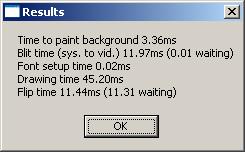
The times reported are the millisecond times to fill a memory
screen will a single color, using DirectDraw Blt times are the times to copy them to the screen buffers,
using Direct3D it's the texture
preparation time
(this gives you an idea of the sustained changing frame rate DMDX will have),
the time to draw the texts into memory (if a bitmap is displayed then this
is the time taken to move the bitmap from memory into the screen buffer),
the time to setup the font (if a bitmap is displayed this is the time taken
to read the bitmap off disk or out of the disk cache if this is the second
usage in a row of the same bitmap), the time to draw the text (or transfer
the bitmap) and the time to flip the display from the back buffer to the
front buffer if using DirectDraw or if using Direct3D the time to Present the
triangles and textures (neither of which should be more than the refresh interval). The wait
times are the amount of time spent waiting for an operation to finish --
unless you have a hardware accelerator that has it's own separate Blitter these
times should be less than one millisecond. The code will not wait
more than 1000 milliseconds for anything so values of 1000 or more indicate
something wrong. Do not be alarmed by a high Blit time if you see
one, the first blit of any DirectX session can be way
slow. After that but not displayed
in the image above is a line about the textures used, if you're using the
classic DirectDraw renderer this won't contain much information other than the
fact you're using DirectDraw, if you're using Direct3D this will contain two
pieces of information that DMDX an TimeDX should take into account notably
whether texture dimensions have to be powers of 2 and whether they have to be
square. Also not shown are the average raster status polling time and the
SD of doing so which I did more to compare polling times between Direct3D and
DirectDraw part of the effort to track down and deal with video chipsets that
freak when DMDX hammers on the Direct3D raster status function.
If using Direct3D while TimeDX is being
displayed you can hit the A alternate display button and see the triangles
making up the wireframe the textures are mapped onto.
TimeDX
Index.